Client Dashboard
The Client Dashboard shows up-to-date statistics about all client projects that you have permission to access. In addition to the summary information at the top of the page, you can view different aspects of the data by individual project or by multiple projects and see a prediction of the next month's collection rate based on the current collection trajectory.
Client Administrators can view this dashboard on their Client page by clicking in the left pane or selecting Client Dashboard in the Account Menu.

The following figure shows an example of the Client Dashboard.
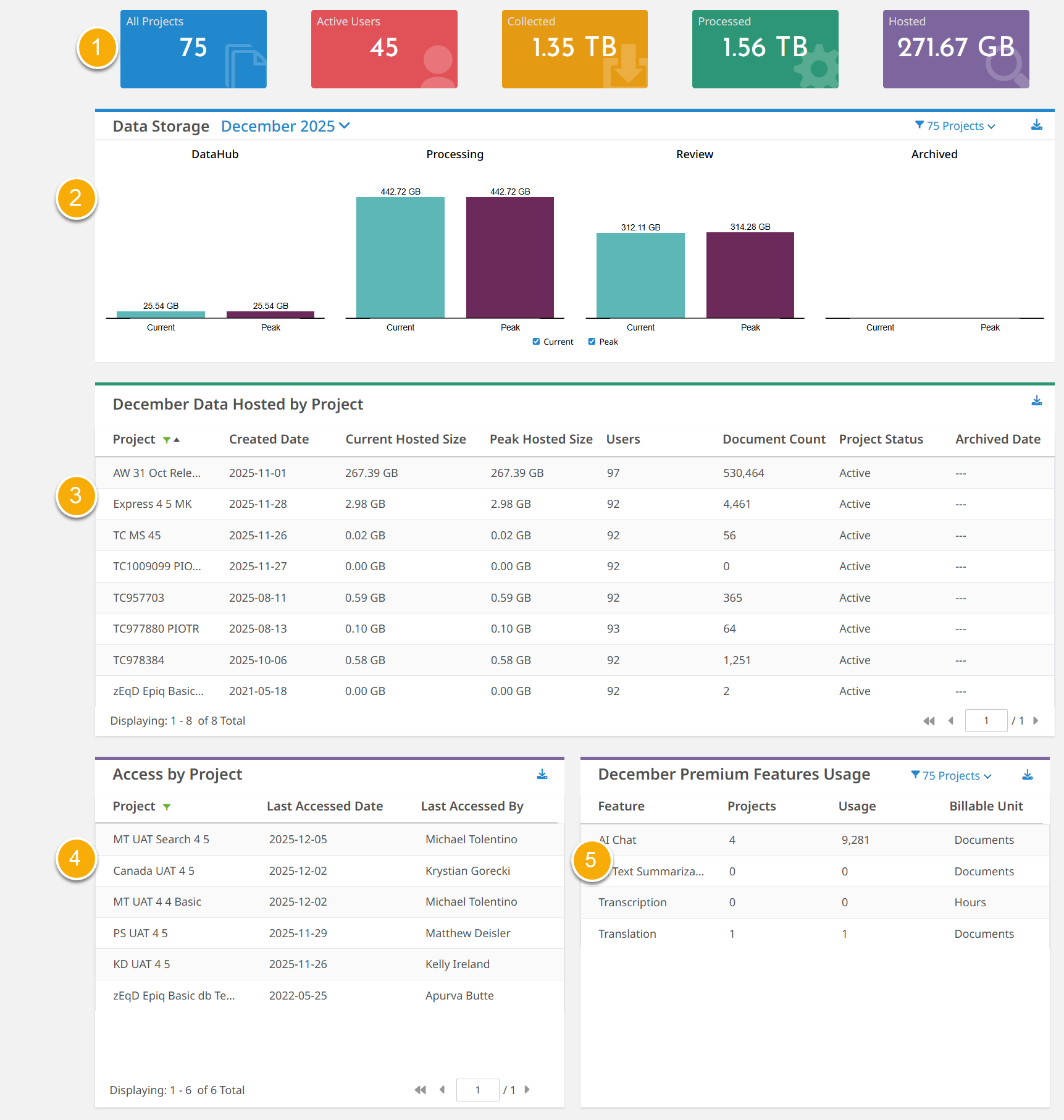
- Summary information at the top of the page includes the following client-specific information.
- - Total number of active projects and archived projects. Deleted projects are not included in this total.
- - Total number of active users with Client Administrator, Project Manager, Litigation Support, Review Manager, Senior Reviewer, and Reviewer roles within the client.
- - Total amount of data collected. This also includes deleted data.
- - The amount of data processed. This also includes deleted data.
- - Total hosted data, including data in the database, search index, and document files in active projects. This total includes loaded documents and concealed documents.
- Data Storage shows the current and peak hosting size (in GB) for the selected month across four components:
DataHub. Documents stored in DataHub.
Processing. Processed documents.
Review. Promoted documents.
Archived. Archived documents.
You can view the data for multiple projects or an individual project. You can select projects from the list at the top right of the chart. You can also choose to view the current data, peak data, or both by selecting or clearing the Current or Peak options at the bottom of the chart. Hovering over a bar in the chart displays the data size.
The Current data is the latest or present usage value for a component (for example, DataHub, Processing) at the time of viewing.
The Peak data is the highest recorded usage within the selected month.
For Processing hosting size, since the current value is the sum of processed bytes after each processing job completes, the current and peak values are the same.
The hosting size includes the total processed hosted bytes in SQL Database and Elasticsearch, as well as document files in active and archived projects. It includes both loaded and concealed documents.
You can export this chart data. Refer to Sort, filter, and export Client Dashboard data for more information.
-
shows the hosted data by project. Each row contains the following information for a single project. Deleted projects might appear if there is a wait period set (typically 30 days) before deletion.
-
- Project name.
- - Creation date for the project.
-
Current Hosted Size - Current total amount of hosted data per project.
-
Peak Hosted Size - Peak total amount of hosted data per project.
- - Total number of users with access per project.
- - Total number of documents, excluding deleted documents.
- - Current project status: Active, Deleted, or Archived.
- - Archived date for project, if applicable.
You can sort, filter, and export this table information. Refer to Sort, filter, and export Client Dashboard data for more information.
-
-
Access by Project shows the information about the last accessed date of projects and the user (Client Administrator or user with a lower role) who accessed the project most recently. It lists only active projects and excludes projects that have never been accessed after creation. The table has the following columns.
-
Project. Displays the project names.
-
Last Accessed Time. The last accessed time of the project, which can include simply entering the project. By default, the table displays the most recently accessed projects at the top.
-
Last Accessed By. The name of the user who accessed the project most recently.
You can sort, filter, and export this table information. Refer to Sort, filter, and export Client Dashboard data for more information.
-
-
Premium Features Usage shows usage metrics for premium features in active projects. The system adds the current month as a prefix to the table name and refreshes the table data nightly. You can view metrics for multiple projects or an individual project by selecting projects from the project list at the top right of the table.
The table includes the following columns.
-
Feature. Name of the premium feature, such as AI Chat and Translation.
-
Projects. Number of projects selected.
-
Usage. Number of billable units. (for example, number of documents for AI Chat).
-
Billable Units. Measurement unit (for example, Documents for AI Chat, Hours for Transcription).
You can export this table information. Refer to Sort, filter, and export Client Dashboard data for more information.
-
 Related: Project Dashboard